# Création d'un cluster K8S sur proxmox
## Création de 3 VMS en désactivant le SWAP
1. $ free -h.
2. $ sudo swapoff -a.
3. $ sudo nano /etc/fstab.
4. \# /dev/sda3 none swap sw 0 0.
5. $ sudo swapoff -a.
## Installation des outils
1. Update the `apt` package index and install packages needed to use the Kubernetes `apt` repository:
```shell
sudo apt-get update
sudo apt-get install -y apt-transport-https ca-certificates curl gpg
```
2. Download the public signing key for the Kubernetes package repositories. The same signing key is used for all repositories so you can disregard the version in the URL:
```shell
curl -fsSL https://pkgs.k8s.io/core:/stable:/v1.29/deb/Release.key | sudo gpg --dearmor -o /etc/apt/keyrings/kubernetes-apt-keyring.gpg
```
**Note:** In releases older than Debian 12 and Ubuntu 22.04, folder `/etc/apt/keyrings` does not exist by default, and it should be created before the curl command.
3. Add the appropriate Kubernetes `apt` repository. If you want to use Kubernetes version different than v1.29, replace v1.29 with the desired minor version in the command below:
```shell
echo 'deb [signed-by=/etc/apt/keyrings/kubernetes-apt-keyring.gpg] https://pkgs.k8s.io/core:/stable:/v1.29/deb/ /' | sudo tee /etc/apt/sources.list.d/kubernetes.list
```
**Note:** To upgrade kubectl to another minor release, you'll need to bump the version in `/etc/apt/sources.list.d/kubernetes.list` before running `apt-get update` and `apt-get upgrade`. This procedure is described in more detail in [Changing The Kubernetes Package Repository](https://kubernetes.io/docs/tasks/administer-cluster/kubeadm/change-package-repository/).
4. Update `apt` package index, then install kubectl:
```shell
sudo apt-get update
sudo apt-get install -y docker.io kubelet kubeadm kubectl kubernetes-cni
```
```
containerd config default | sudo tee /etc/containerd/config.toml >/dev/null 2>&1
```
Edit the file ‘/etc/containerd/config.toml’ and look for the section ‘\[plugins.”io.containerd.grpc.v1.cri”.containerd.runtimes.runc.options\]’ and change ‘SystemdCgroup = false’ to ‘SystemdCgroup = true‘
```
$ sudo vi /etc/containerd/config.toml
```
[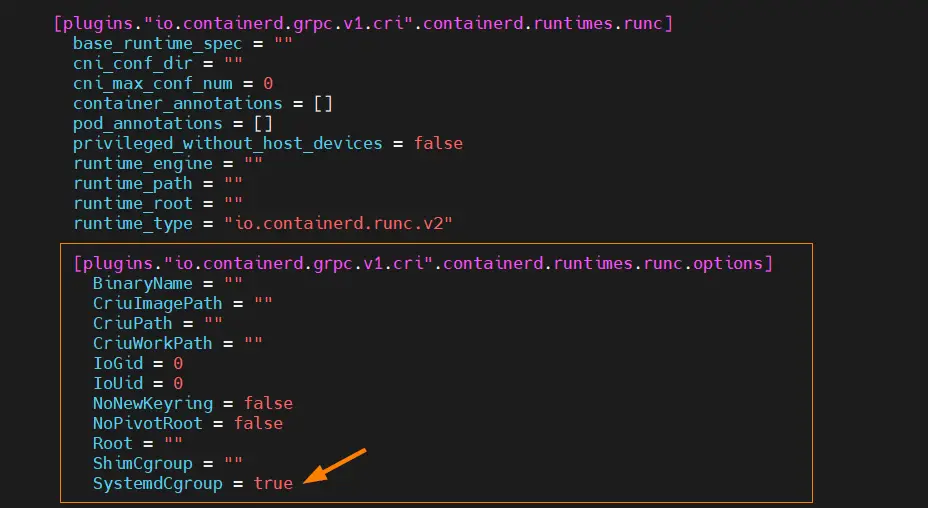](https://www.linuxtechi.com/wp-content/uploads/2022/09/Enable-SystemCgroup-Containerd-Debain12.png)
Save and exit the file.
reboot
## Initialisation du kube
Sur le noeud 1
```
kubeadm init
```
To start interacting with cluster, run following commands on master node,
```
$ mkdir -p $HOME/.kube
$ sudo cp -i /etc/kubernetes/admin.conf $HOME/.kube/config
$ sudo chown $(id -u):$(id -g) $HOME/.kube/config
```
Run following kubectl command to get nodes and cluster information,
```
$ kubectl get nodes
$ kubectl cluster-info
```
Output of above commands
## Ajout de nodes dans le kube